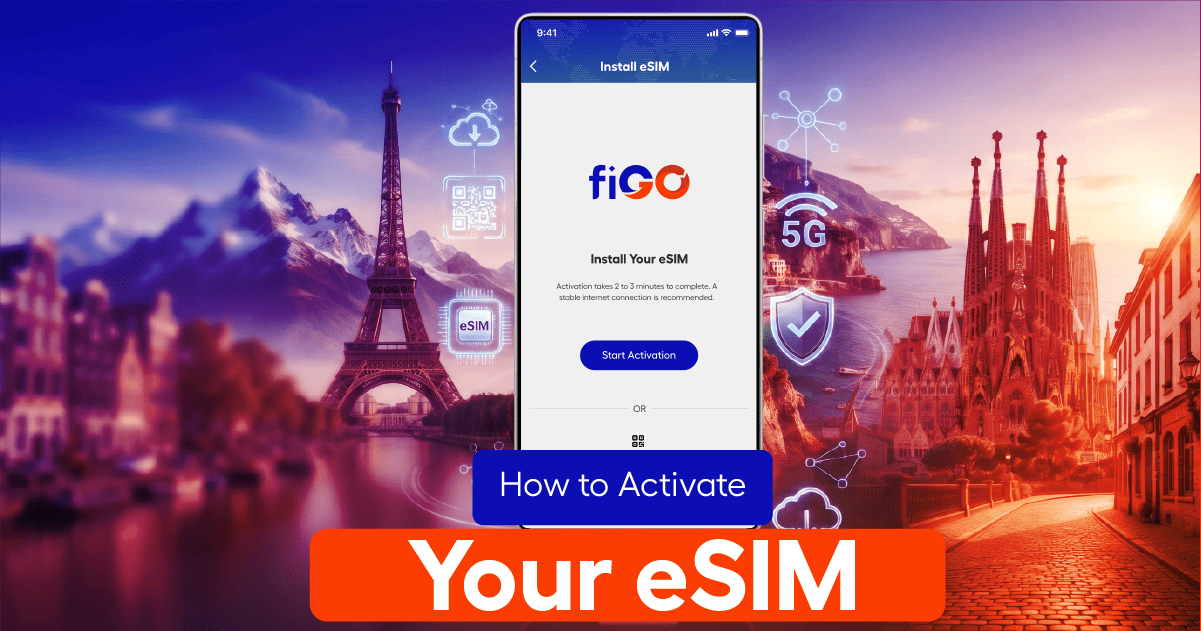
Getting your fiGO eSIM up and running takes about 2–3 minutes once you know where to tap. The exact steps depend on whether you’re using an iPhone, a Samsung/Android device, or a Google Pixel — so we’ve broken down each one below with screenshots you can follow along with.
Before you start, make sure you have:
- An active fiGO data plan
- A stable WiFi or internet connection (activation needs a connection to complete)
- Your device unlocked and eSIM-compatible
How to Activate Your eSIM on iPhone
Your fiGO eSIM is already installed on your device — you just need to select it, label it, and turn on Data Roaming to connect.
Step 1: Go to Settings Open Settings and tap on Mobile Service.
Step 2: Select fiGO eSIM Under SIMs, tap on fiGO eSIM.
Step 3: Turn On This Line Toggle Turn On This Line to ON.
Step 4: Select for Mobile Data Tap on Mobile Data and select fiGO eSIM.
Step 5: Enable Data Roaming Turn on Data Roaming.
Step 6: You’re All Set! Once Data Roaming is on, you’re connected. Enjoy seamless connectivity with fiGO.
How to Activate Your eSIM on Samsung / Android
If you’re using a Samsung device (or most Android phones with a similar interface), your fiGO eSIM is already installed — follow these steps to switch it on.
Step 1: Go to Settings Open Settings on your Android device.
Step 2: Go to Connections Tap on Connections.
Step 3: Select SIM Manager Tap on SIM manager.
Step 4: Select fiGO eSIM Under eSIMs, select your fiGO eSIM.
Step 5: Enable for Mobile Data Tap on Mobile data and select fiGO eSIM.
Step 6: Turn On Data Roaming Turn on Data Roaming. You’re all set!
Once Data Roaming is enabled, your fiGO eSIM is active. Enjoy seamless connectivity!
How to Activate Your eSIM on Google Pixel
Pixel phones use a slightly different menu path than Samsung devices, but the process is just as quick.
Step 1: Go to Settings Open Settings and tap on Network & internet.
Step 2: Select SIMs Tap on SIMs.
Step 3: Choose fiGO eSIM Under Preferred SIMs, select fiGO eSIM for Mobile data.
Step 4: Turn On Mobile Data Turn on Mobile data.
Step 5: Enable Data Roaming Turn on Roaming (Data Roaming).
Step 6: You’re All Set! You’ll see a Connected confirmation — enjoy seamless connectivity with fiGO.
Common Activation Issues
“My eSIM shows as installed but I have no data.” Double-check that Data Roaming is switched on — this is the single most common reason travelers stay disconnected after activation. Your eSIM can be installed and selected correctly, but without roaming enabled, no data will flow.
“I don’t see fiGO eSIM as an option in my SIM settings.” Make sure the eSIM was fully installed before you left home or turned on airplane mode — activation requires an internet connection, so it’s best completed on WiFi before you land.
“Activation is stuck or taking longer than expected.” Activation typically takes 2–3 minutes. If it’s taking significantly longer, try toggling Airplane Mode on and off, or restart your device and reselect fiGO eSIM under Mobile Data.
Why It Matters to Get This Right Before You Travel
Landing in a new country without working data is one of the most common travel headaches — no maps, no translation apps, no way to book a ride. Activating your fiGO eSIM before departure (or the moment you land, while still on airport WiFi) means you skip that entirely.
Ready to get connected? Browse fiGO eSIM plans for your destination and activate in minutes, wherever you’re headed.
FAQ
Do I need WiFi to activate my eSIM? Yes, activation requires an internet connection to complete. We recommend activating on WiFi before you travel, then switching to your fiGO eSIM data once you land.
Can I activate my eSIM before I travel? Yes — you can install and activate your fiGO eSIM in advance. Just make sure Data Roaming is turned on when you arrive at your destination so it starts working immediately.
What if my phone doesn’t support eSIM? Most phones from the last 4–5 years support eSIM, including iPhone XS and later, Google Pixel 3 and later, and Samsung Galaxy S20 and later. Check your device settings for a “SIM manager” or “Mobile Service” option to confirm.