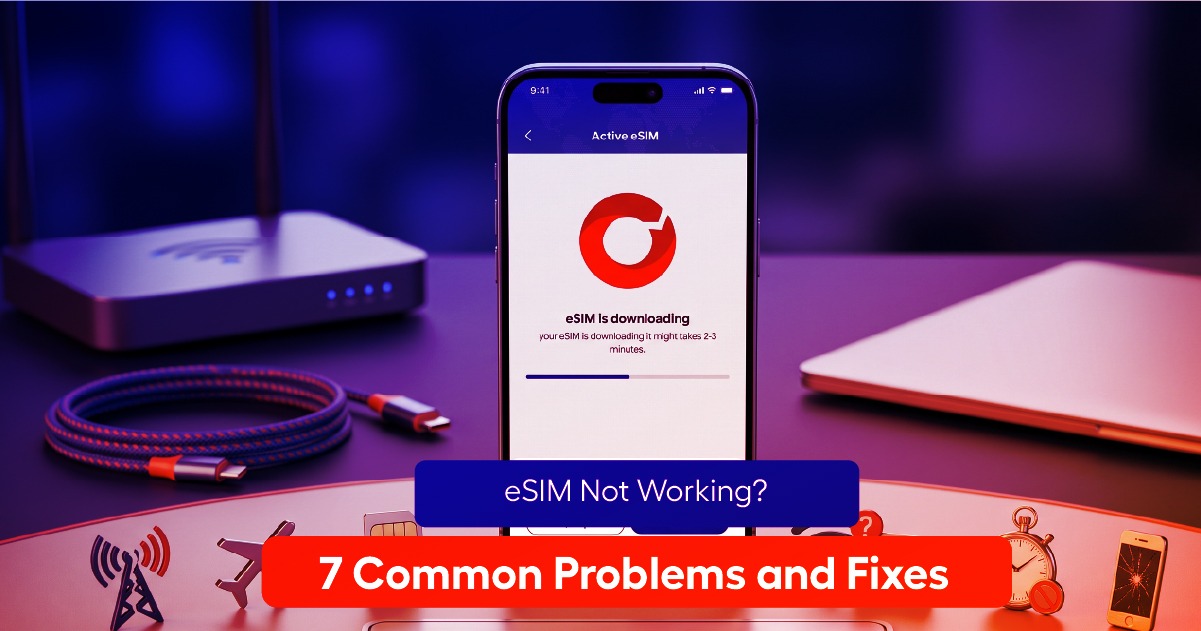
You’re mid-trip, your phone won’t connect, and you just want it fixed. You’re not alone — most eSIM problems
come down to a small handful of causes, and nearly all of them are fixable in a couple of minutes.
Before You Troubleshoot — Quick Checklist
Before digging into specific fixes, run through the basics: make sure airplane mode is off, confirm your eSIM
line is set as the active data line (not just installed), and restart your phone. This resolves a surprising number
of connection issues on its own.
eSIM Could Not Be Activated
This error usually means the installation process was interrupted, most often by a weak WiFi connection during
setup. Fixes, in order: reconnect to a strong WiFi network and try installing again, make sure you’re using the
QR code or activation link only once (most are single-use), and check that your phone’s date and time are set
to automatic, since an incorrect clock can break the secure handshake during activation.
No Signal or No Data After Activation
If the eSIM installed successfully but you’re not getting data, the most common cause is that data roaming
isn’t turned on for that specific line. Go into your cellular settings, select the eSIM line, and confirm data
roaming is enabled for it. Second most common cause: the wrong line is set as your primary data line. If you
have both a home SIM and a travel eSIM installed, double-check which one is actually handling data.
QR Code Won’t Scan
Try increasing your screen brightness on the device showing the code, and make sure there’s no glare or
crease across it if it’s printed. If scanning still fails, most providers include a manual activation option — a code
you can type in directly instead of scanning, usually found in the same email as the QR code.
eSIM Not Showing Up as an Option on Your Phone
This almost always means either the device doesn’t support eSIM, or it’s been carrier-locked to reject other
providers’ profiles. Check your specific model’s eSIM compatibility, and if it should be supported, contact your
carrier to confirm the phone isn’t locked.
When to Contact Support vs. Self-Fix
If you’ve worked through the steps above and you’re still stuck after two attempts, it’s faster to contact your
provider’s support directly than to keep retrying. Have your order confirmation and device model ready —
most issues at that point are account-side rather than something you can fix from your settings menu.
Frequently Asked Questions
Can I reinstall an eSIM after deleting it?
Usually yes, as long as the plan hasn’t expired — most providers can resend your activation details if you contact support.
Does resetting network settings remove my eSIM?
On most phones, yes. Back up or note your provider’s activation details before doing a full network reset, since you may need to reinstall. If you’re still stuck after working through this list, fiGO’s support team can usually resolve an activation issue in a few minutes — reach out rather than losing your trip to a settings menu.