Looking for answers? Explore our FAQs, or contact our customer support team. We’re available 24/7 to assist you via direct WhatsApp and email.
fiGO is a global travel eSIM provider offering affordable mobile internet access across 150+ destinations worldwide.
You can check your device's specifications in the manufacturer's settings or on the official brand website. fiGO is compatible with all eSIM-enabled iPhones, Android smartphones, Google Pixel devices, and supported Huawei models. You can also find a list of supported devices in the fiGO app.
You can download the fiGO app from the Apple App Store for iPhone or from Google Play for Android devices. Simply search for "fiGO" download the app, and get started.
fiGO operates in over 120+ destinations across all continents, including popular locations such as Greece, Turkey, Albania, Spain, Thailand, the United States, and many more. Check the fiGO app to explore supported countries and find the perfect data plan for your trip.
There are 3 installation methods:
If one-tap installation or QR code scanning isn't available, you can activate manually:
Your eSIM will be activated once you install it on your device and connect to a network. The activation process is automatic and typically takes 2-5 minutes. Your data plan validity period starts from the moment you connect with your destination network, not from the purchase date.
Data roaming must be enabled for your fiGO eSIM to work.
On iPhone:
On Android:
On Google Pixel:
Go to Settings > Cellular/Mobile Data > Select your eSIM > Label. Give it a custom name like "fiGO Travel" or "Work Data." To switch between SIMs, go to Settings and select which line to use for mobile data. You can have multiple eSIM profiles installed on your device (typically 5-10) and switch between them in settings.
Yes! Most modern devices support dual SIM functionality, allowing you to use both a physical SIM and an eSIM simultaneously. You can choose which SIM to use for calls, texts, and data in your device settings.
fiGO offers flexible data plans from 3GB to 50GB, valid for 3 to 30 days. Choose plans for a single country or regional coverage. Visit our Plans section to select the option that fits your travel needs with complete freedom.
Open the fiGO app, select your destination, choose the duration of your trip, and pick your desired data amount. Complete your purchase, and your plan will be created instantly, ready to use right away.
Data usage varies depending on how you use your phone:
You can manage your eSIM plan directly from the app. Go to the dashboard, select "Add More Plans" and purchase.
No, unused data does not roll over to the next period. When your plan expires, any remaining data is forfeited. We recommend choosing a plan that matches your expected usage to get the best value.
No throttling, no daily limits. Enjoy full-speed data and use your entire data plan with no caps. fiGO seamlessly connects you to the best available network at your destination.
We accept all major payment cards (Visa, Mastercard, American Express), PayPal, Apple Pay, and Google Pay. All transactions are secured with Stripe and industry-standard encryption.
Refunds may be issued only if the eSIM has not been installed. Once an eSIM is installed, it is considered activated and is no longer eligible for a refund. If your eSIM has not been installed and you would like to request a refund, please contact our support team via WhatsApp or email us at support@hellofigo.com, including the email address used for your purchase and your Order Reference number.
fiGO offers data-only plans and does not include traditional voice calls or SMS. However, you can still make calls and send messages using internet-based apps such as WhatsApp, Viber, iMessage, Telegram, and Facebook Messenger.
Yes. You can use your fiGO eSIM to share your data connection and connect multiple devices through your mobile hotspot.
Absolutely. We use industry-standard encryption for all data transmissions. We do not track your browsing activity, and we comply with international data protection regulations including GDPR. Your privacy and security are our top priorities.
fiGO offers data affordable pricing, instant activation, 24/7 customer support, coverage in 120+ destinations, flexible data plans, and a user-friendly app. We partner with premium network providers to ensure reliable connectivity worldwide.
The ICCID (Integrated Circuit Card Identifier) is a unique serial number that identifies your SIM or eSIM. Think of it as your SIM's fingerprint—no two ICCIDs are the same.
Why it matters:
Where to find it:
If you can't find your ICCID, contact
If your device shows network coverage but you have no internet access:
If the issue persists, reach out to us on WhatsApp or email us at support@hellofigo.com.
If your device shows signal bars but no data icon:
If the issue persists, reach out to us on WhatsApp or email us at support@hellofigo.com.
If you see no signal bars:
If you still see no signal bars, reach out to us on WhatsApp or email us at support@hellofigo.com.
You can log in to the fiGO app on your new device and install the eSIM again from the fiGO app settings.
If you need to restore your eSIM, you can reinstall the same eSIM profile on the same or a different compatible device using the original activation code found in the fiGO app.
The ICCID (Integrated Circuit Card Identifier) is a unique serial number that identifies your SIM or eSIM. Think of it as your SIM's fingerprint—no two ICCIDs are the same.
Why it matters:
Where to find it:
If you can't find your ICCID, reach out to us on WhatsApp or email us at support@hellofigo.com.
Yes! Our support team is available 24/7 via WhatsApp and email at support@hellofigo.com. We provide immediate assistance for activation issues, connectivity problems, and any other concerns you may have.
You can reach us:
fiGO offers one-time prepaid packages with no auto-renewals or contracts. Your travel eSIM is rechargeable and can be topped up anytime with additional data plans.
To change eSIMs, purchase a new plan from the app. Each eSIM has a unique QR code/activation code. You can have multiple eSIM profiles installed on your device and switch between them in settings.
Once you remove an eSIM from your device, it stops consuming data. However, the validity period continues. You can reinstall the same eSIM profile using the original activation code.
Explore fiGO connectivity guides with helpful insights to install your fiGO eSIM, create and activate data packages, and troubleshoot with ease, so you stay connected with confidence wherever you go.
eSIM technology still feels new to a lot of travelers, and that unfamiliarity is
Most eSIM questions get answered one tab at a time — what is it,
Flights and hotels get booked well ahead of a summer trip, and the eSIM
Keeping a family of four connected and findable across an unfamiliar city is a
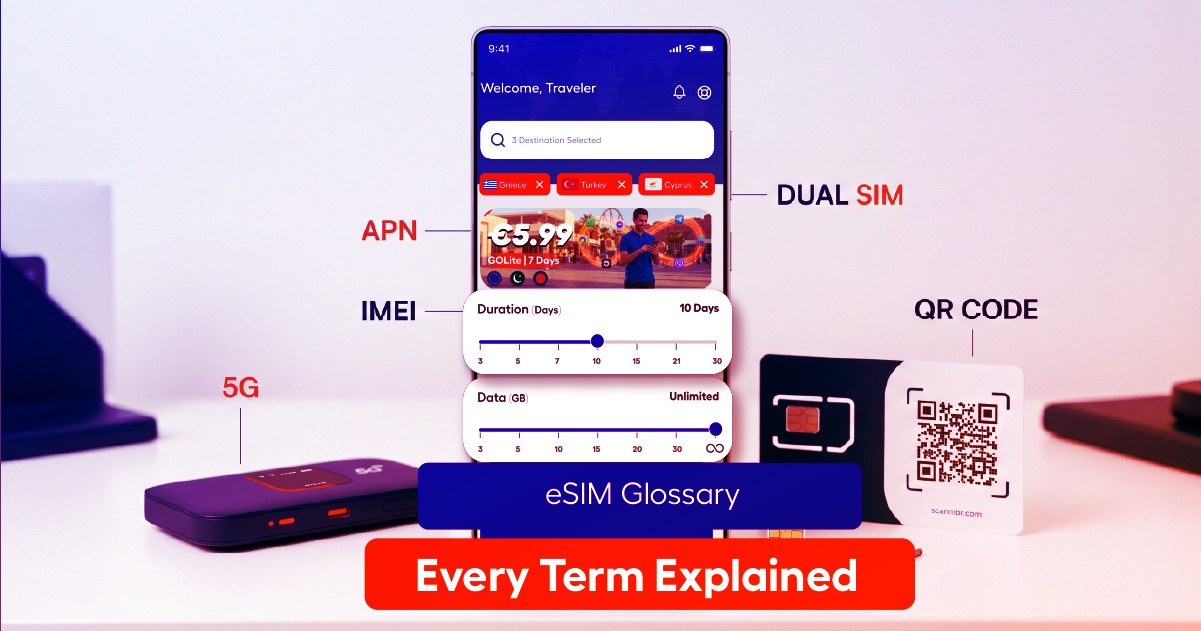
The trip was booked yesterday and you’re presenting tomorrow. There’s no time to deal
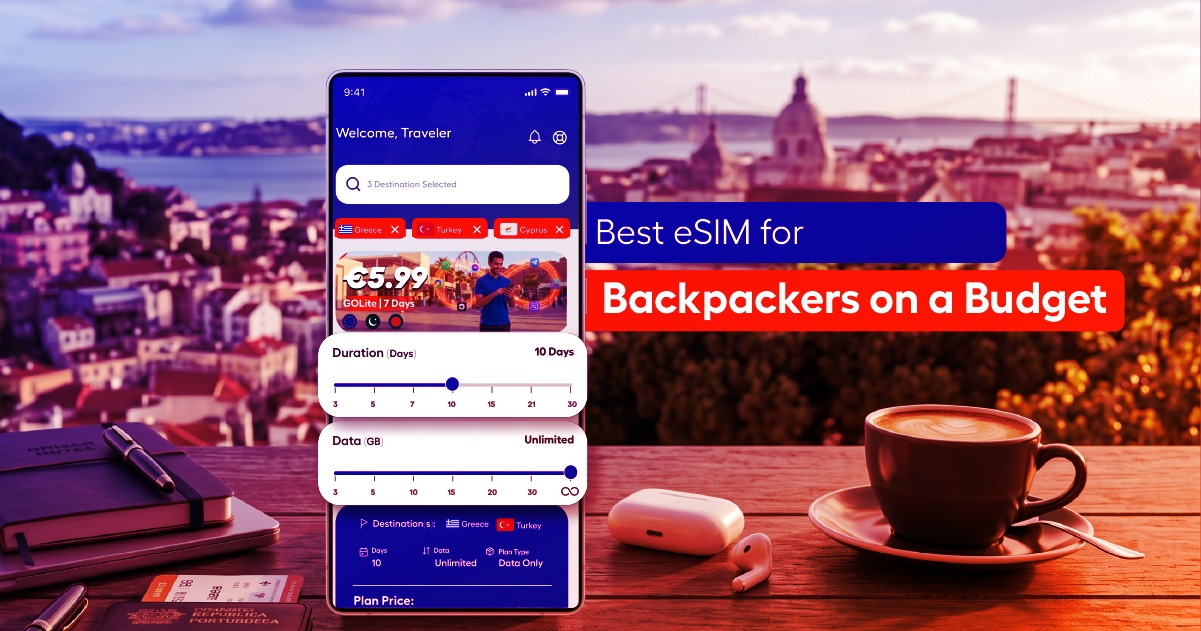
Holiday travel comes with its own connectivity needs — video calls home during the
Have an inquiry or need support? We’re here to assist you.
fiGO keeps you connected globally. Create your plan, install eSIM, and stay connected across 150+ destinations.


eSIM Compatible Devices
No devices found matching your search.